
Manage client accounts
Add the people you work with — realtors, homeowners, assistants, and team members — as Contacts, link them to companies and projects, and set how each one pays.
Open in Stageory- 1
Open the Contacts page
Where all your people live.
- From the left-hand navigation, click Contacts under the Management System section.
- This page stores all realtors, homeowners, assistants, team members, and other business contacts that can be linked to projects and accounts.
app.stageory.com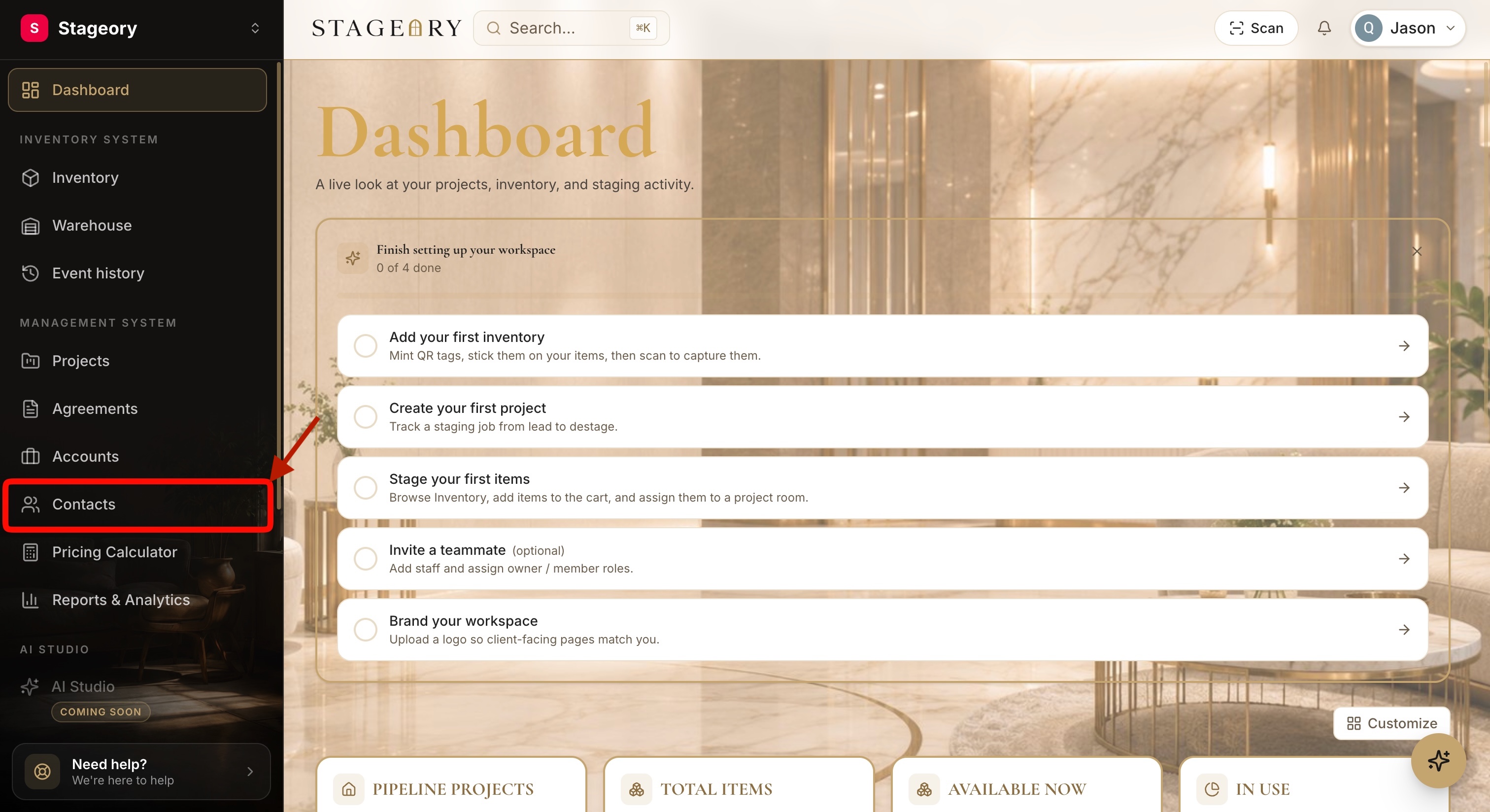
- 2
Create a new contact
Add a new person.
- On the Contacts page, click the New Contact button to add a new person to your workspace.
app.stageory.com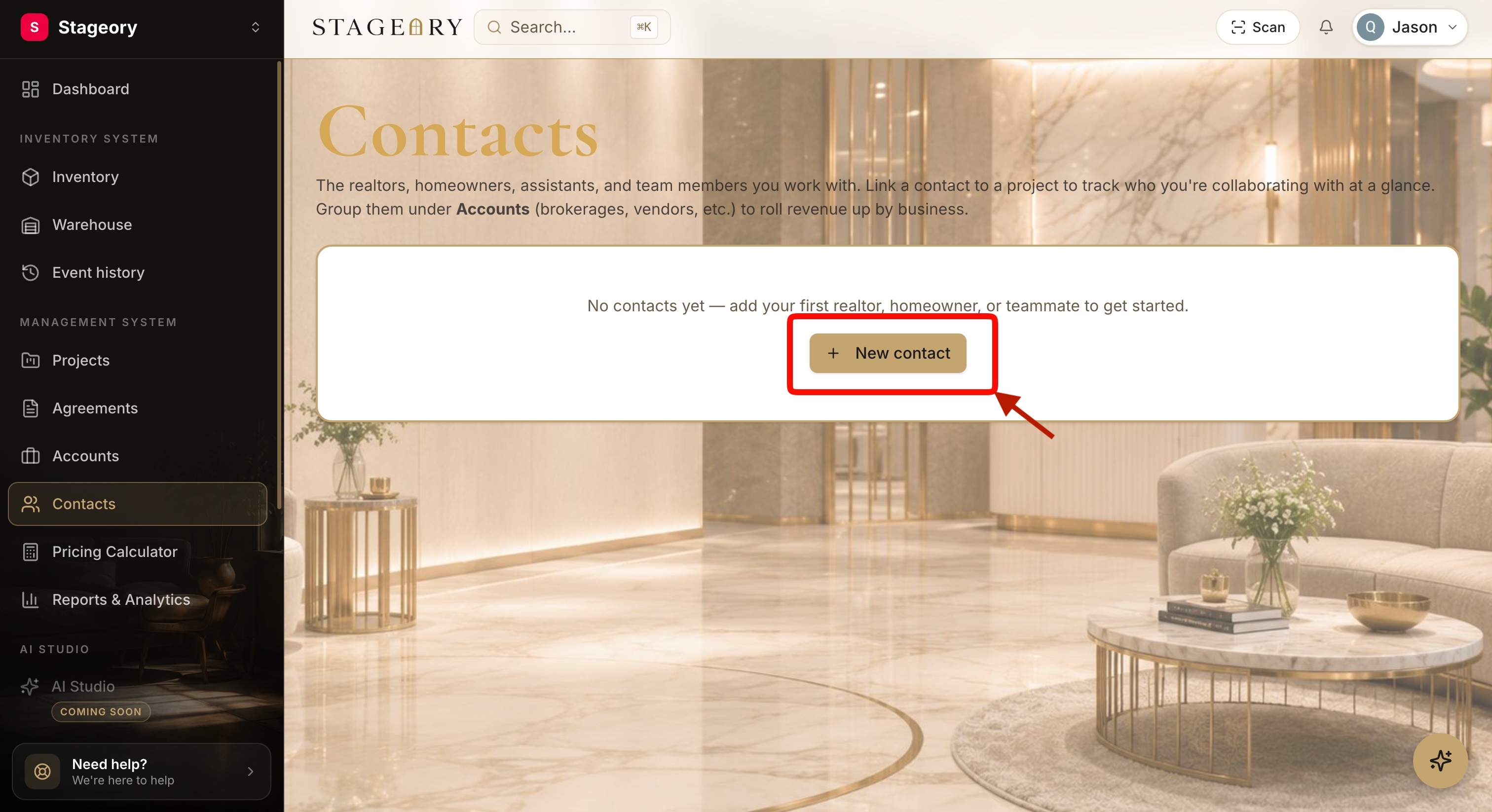
- 3
Enter the contact information
Fill in the profile.
- Complete the profile: First Name (required), Last Name, Email Address, Phone Number, Notes, Primary Company, and Address Information.
- Once all required fields have been entered, click Create Contact.
app.stageory.com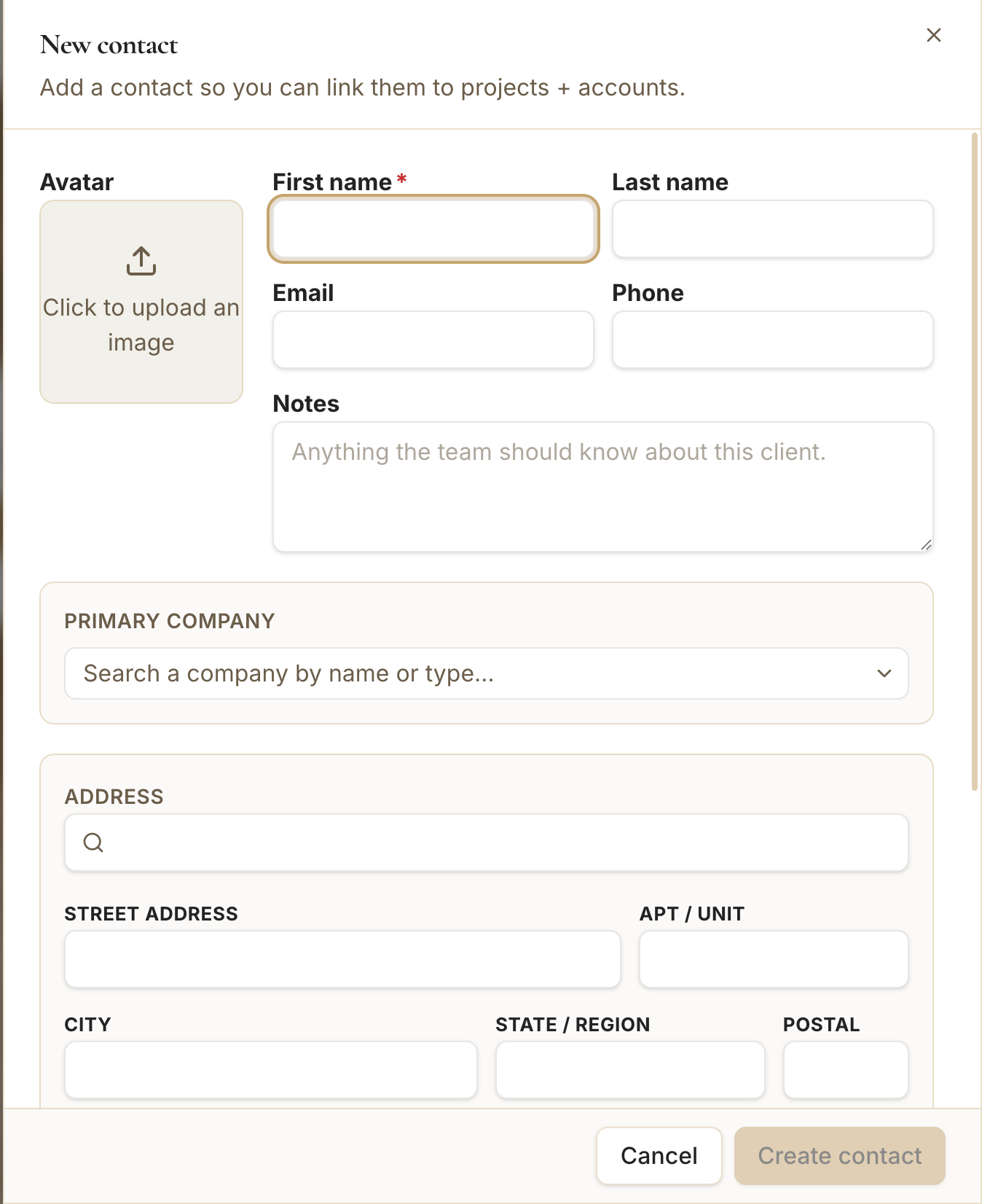
- 4
Open the contact record
Manage their profile.
- After it is created, the contact appears in the Contacts list.
- Click the contact's name to open and manage their profile.
app.stageory.com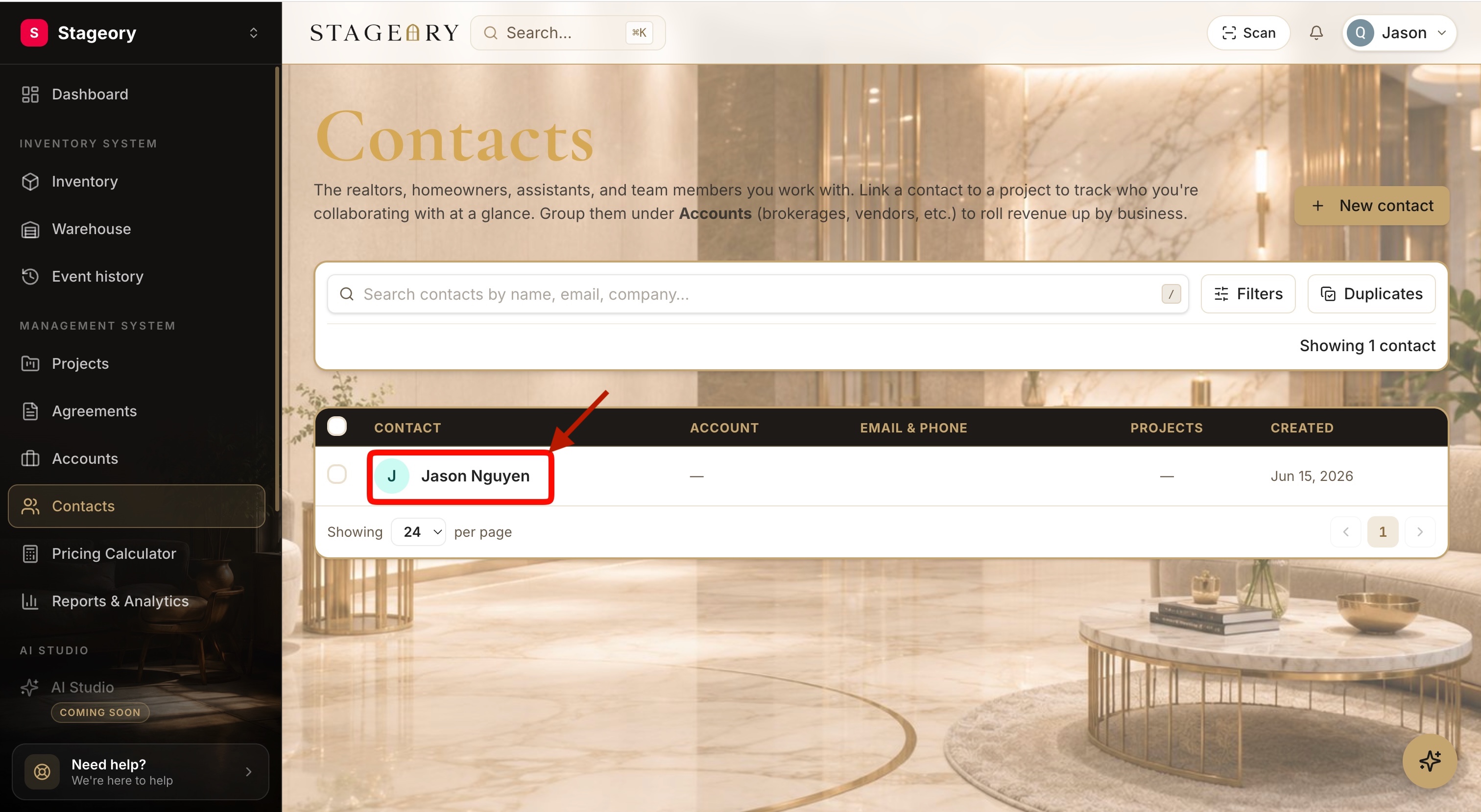
- 5
Configure company, address & payment
Set how they pay.
- Update the Primary Company, Address Information, and Payment Method.
- Choose Online (Stripe Connect) for online invoicing and automatic payment reconciliation, or External (Self-Collect) to record payments collected outside the platform.
- When finished, click Save Changes.
app.stageory.com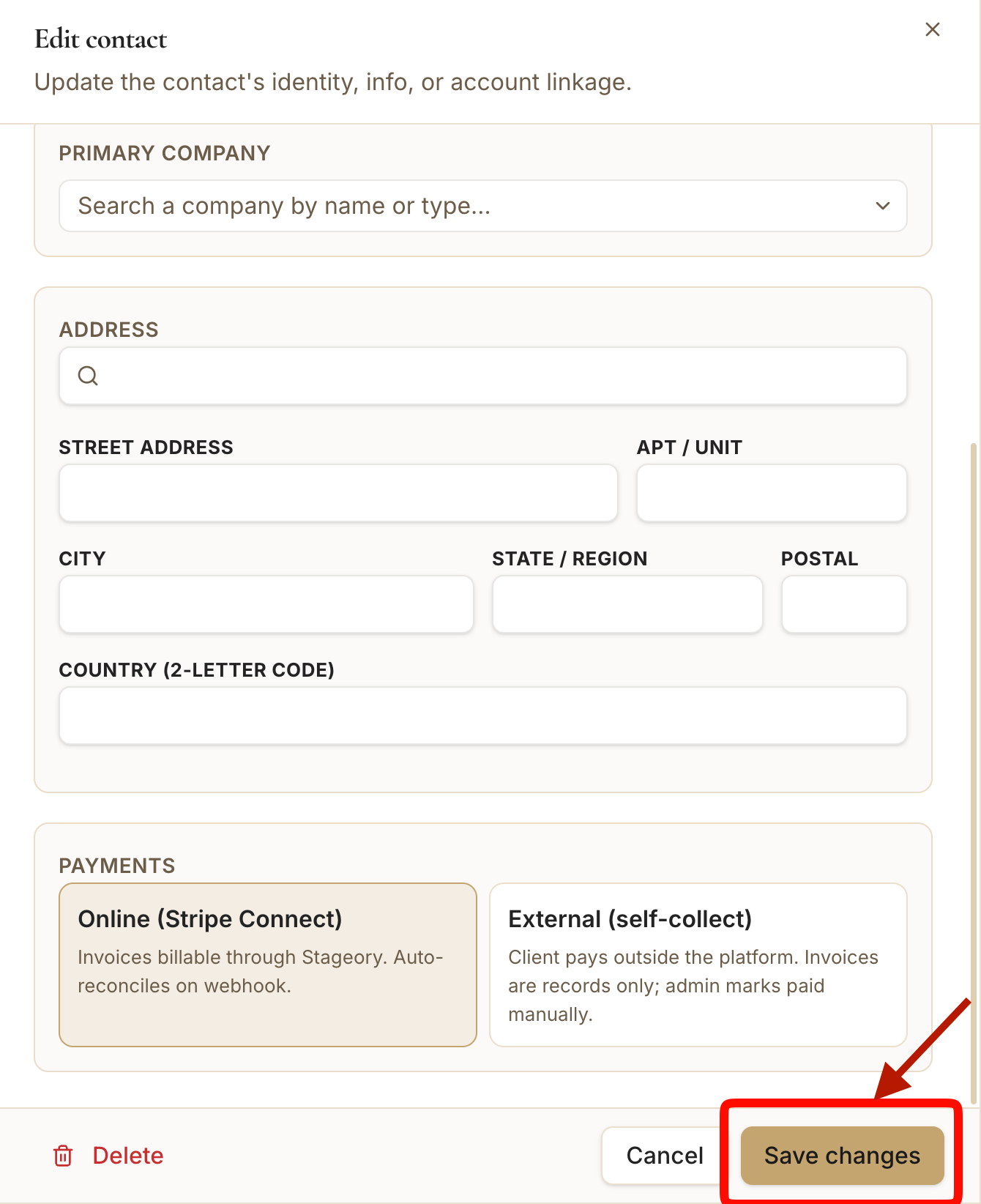
Tips
- First Name is the only required field — add email and phone so you can send agreements and invoices.
- Link a contact to a Primary Company so projects and billing roll up correctly.
- Pick Online (Stripe Connect) to let clients pay invoices online with automatic reconciliation; choose External (Self-Collect) to record payments manually.
Still need help?
Can't find what you're looking for? Our team is here.