
Create an invoice
Bill a client at the project level — Stageory creates the Stripe invoice and emails the contact a pay link.
Open in Stageory- 1
Open the project you want to invoice
Invoices live at the project level.
- Go to Management System → Projects and click the project you want to bill to open its workspace.
- Each invoice belongs to a project, so billing activity is tracked per staging engagement.
app.stageory.com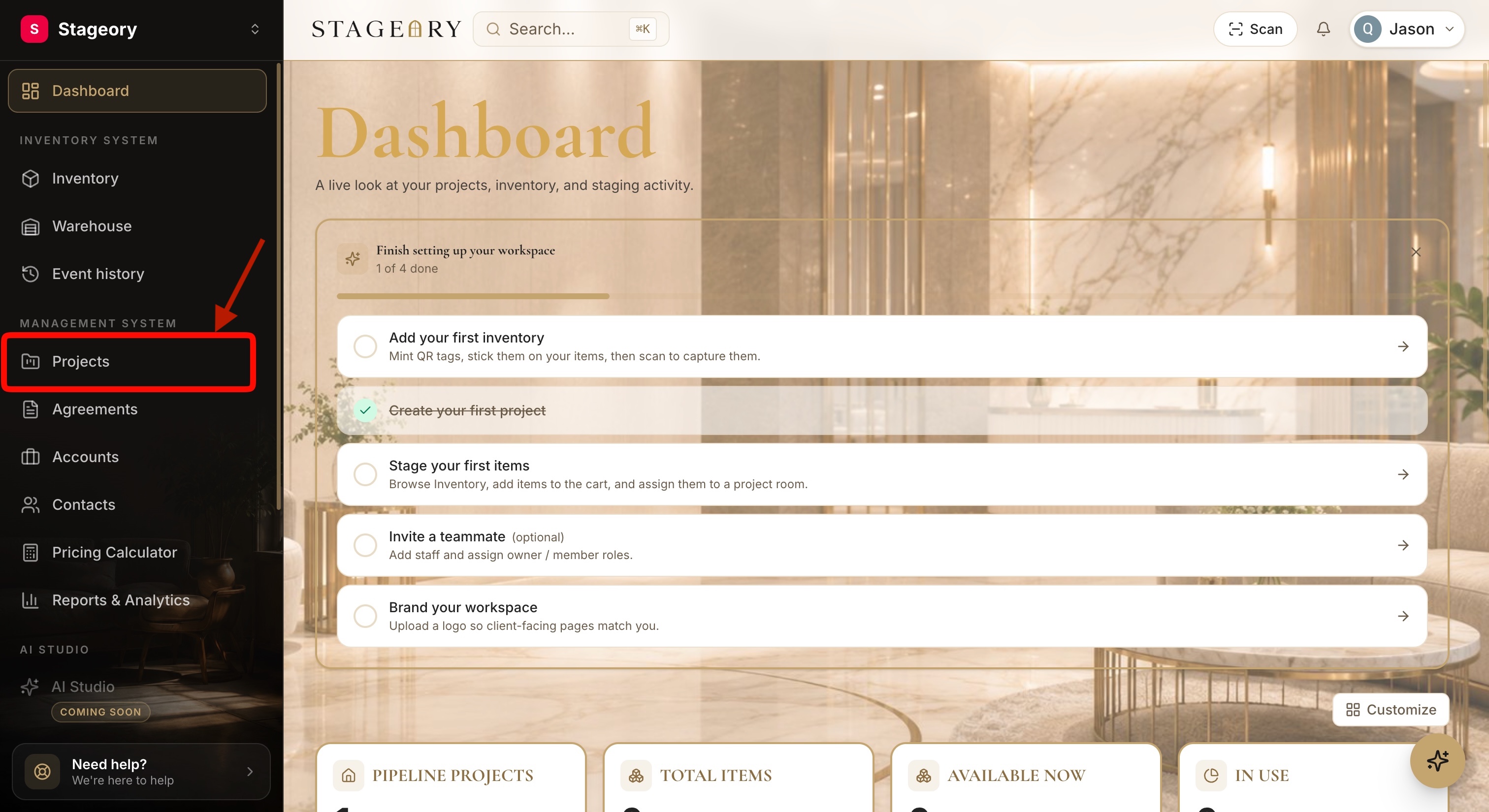
- 2
Open the Invoices tab
Every invoice for this project.
- Inside the project workspace, select the Invoices tab — a single view of every draft, open, paid, and outstanding invoice.
app.stageory.com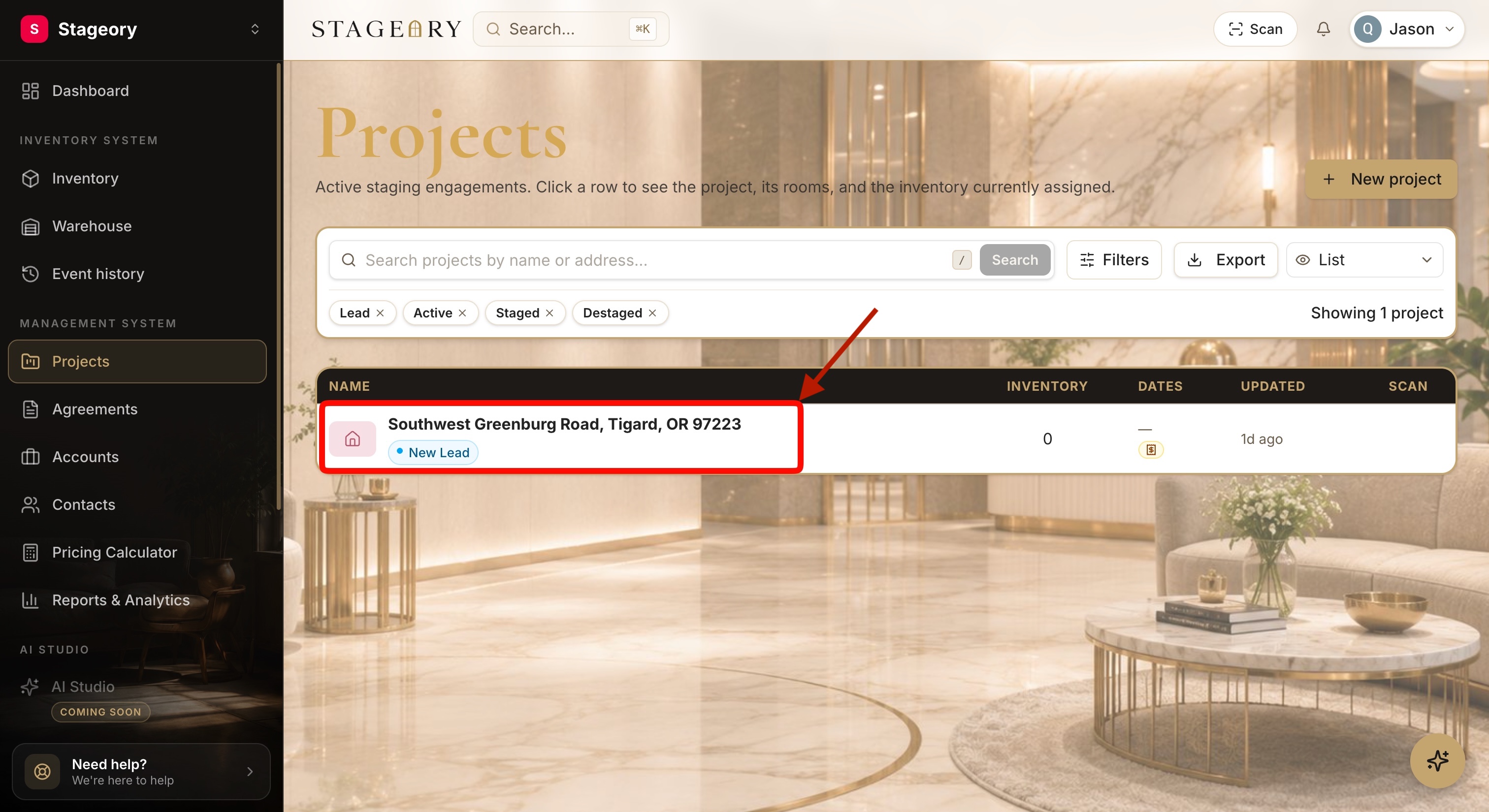
- 3
Create a new invoice
Send now or save as a draft.
- Click Add Invoice. You can send it to the client immediately or save it as a draft to review later.
app.stageory.com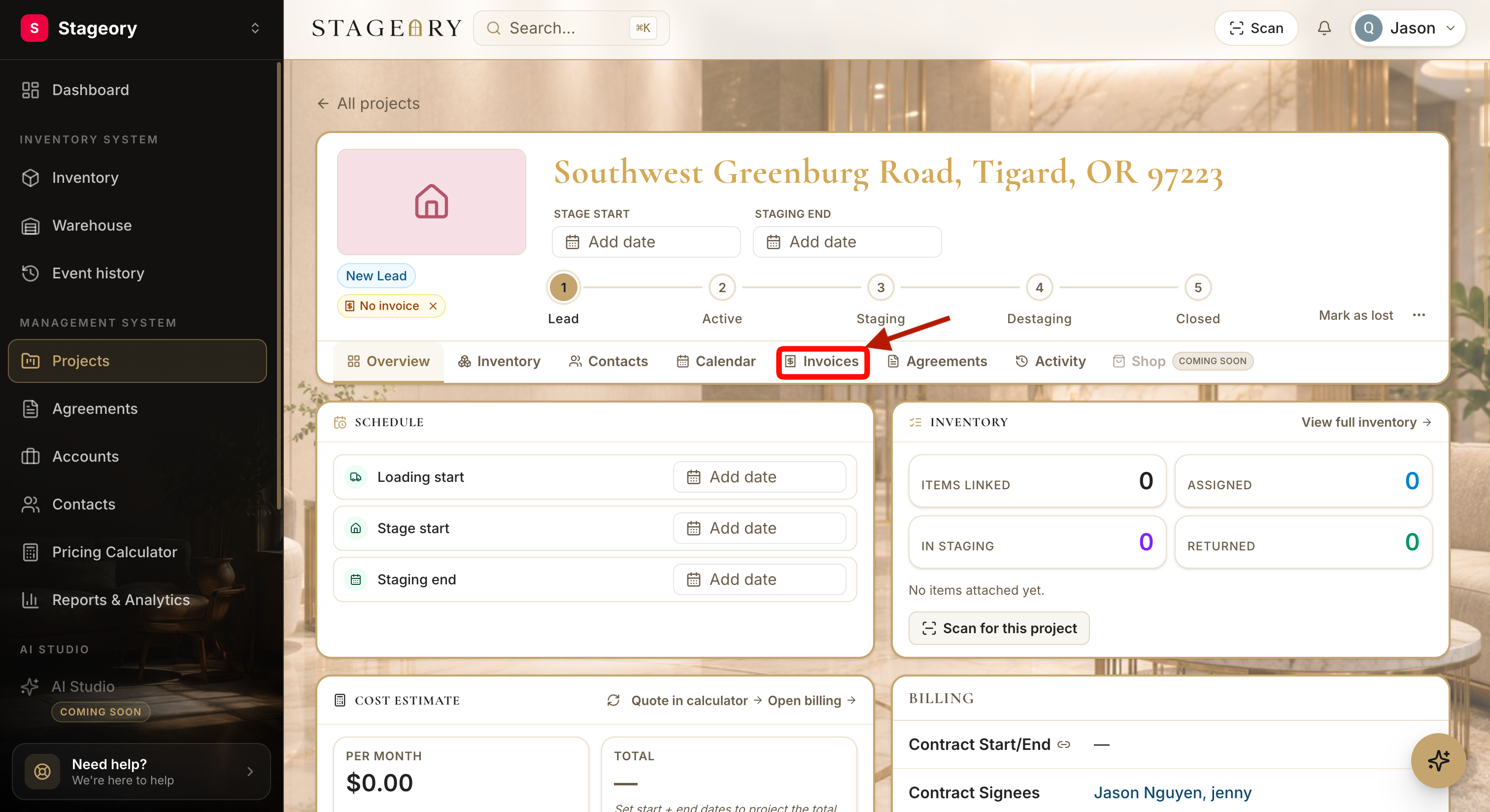
- 4
Complete the invoice details
Title, amount, currency, status.
- Enter a Title (e.g. Staging Services – First Month), the Amount to bill, and the Currency.
- Choose the Status, such as Draft.
app.stageory.com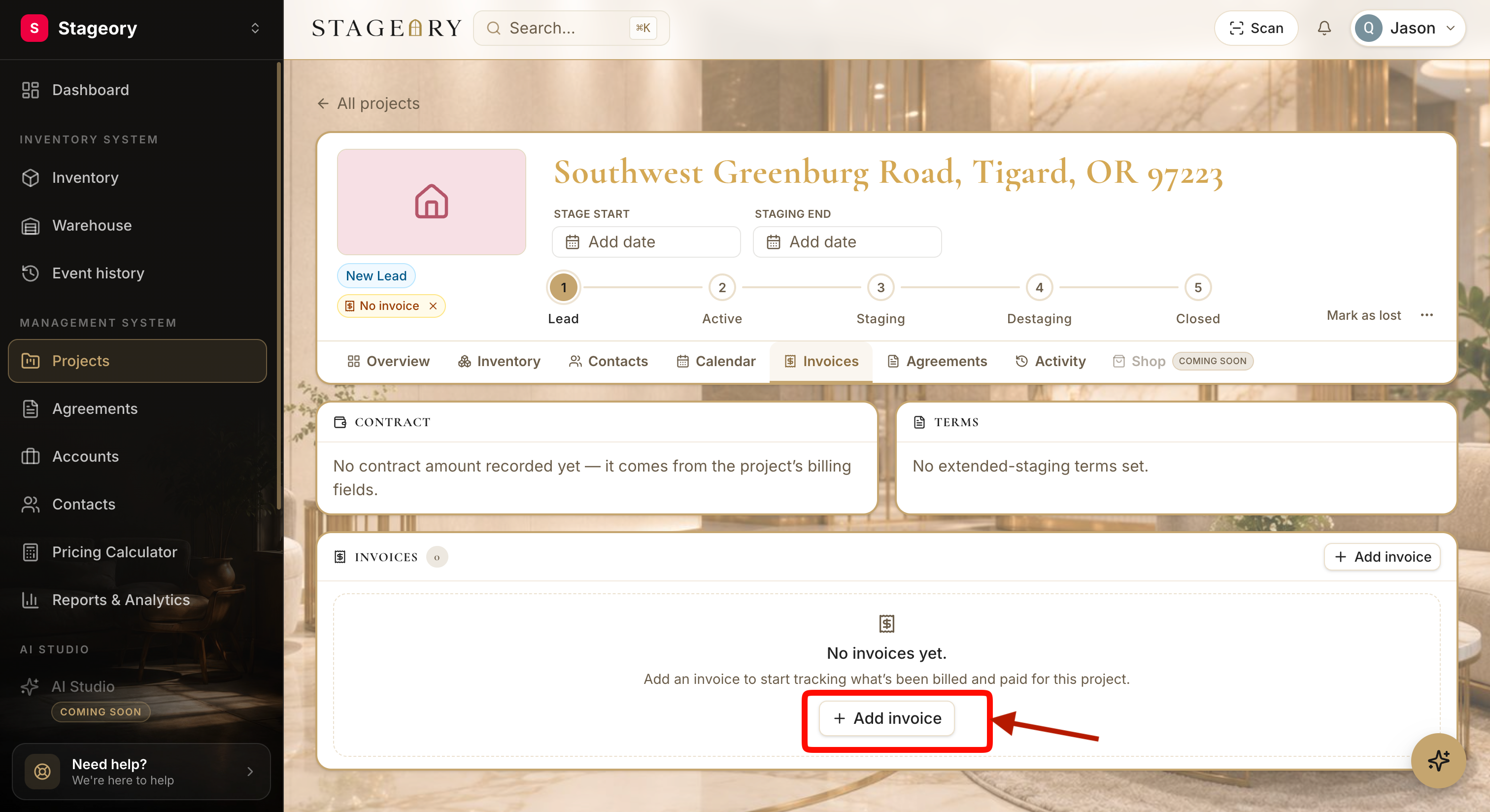
- 5
Configure billing information
Numbering, dates, notes, Bill To.
- Optionally set the Invoice Number (leave blank to auto-generate a unique one), Issue Date, and Due Date.
- Add any Notes, then select the Bill To contact responsible for payment.
app.stageory.com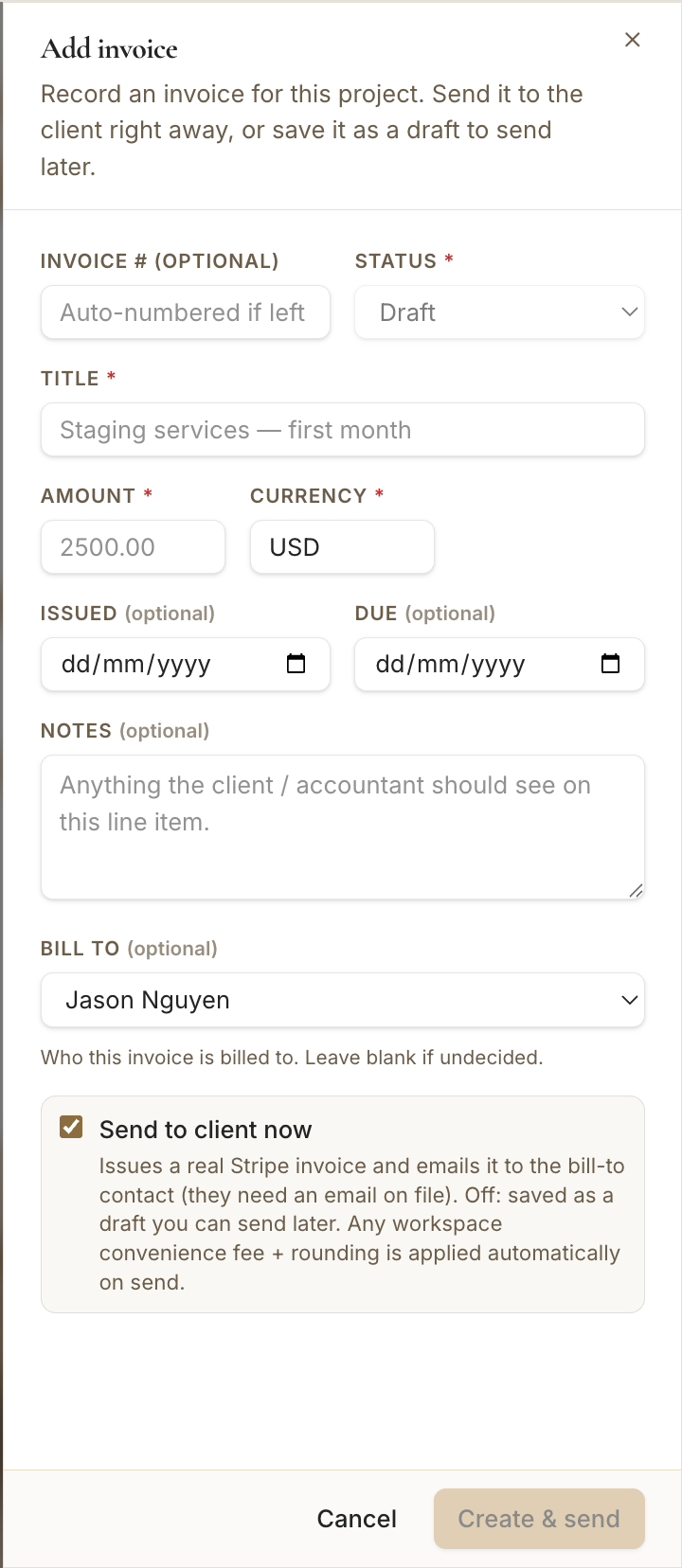
- 6
Send the invoice
Create & Send to the client.
- Enable Send to Client Now to create the Stripe invoice, email the billing contact, and apply workspace fees and billing rules automatically.
- Click Create & Send to finalize.
app.stageory.com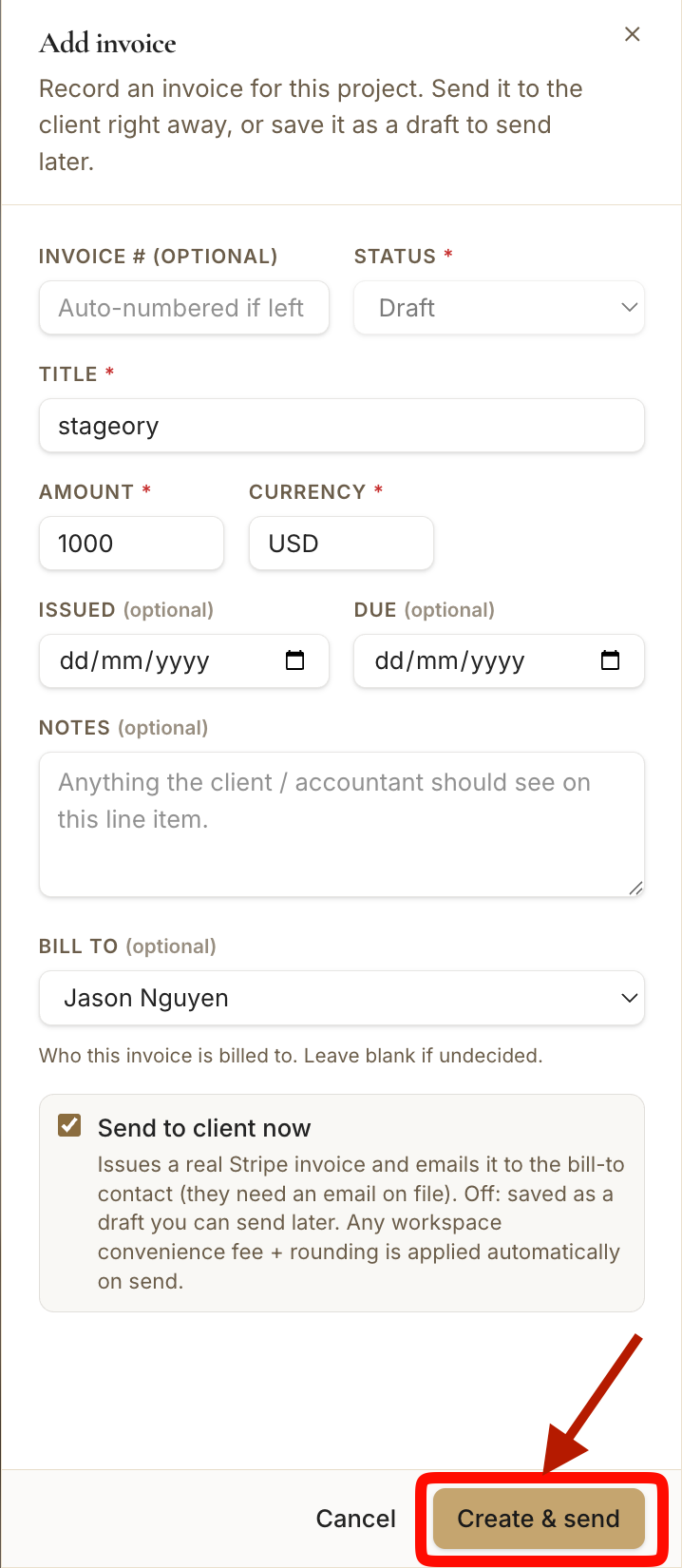
- 7
Review the invoice in the project
Track status and balance.
- The invoice now appears in the project's invoice list, where you can monitor its status, invoice number, billing contact, amount billed, and outstanding balance.
app.stageory.com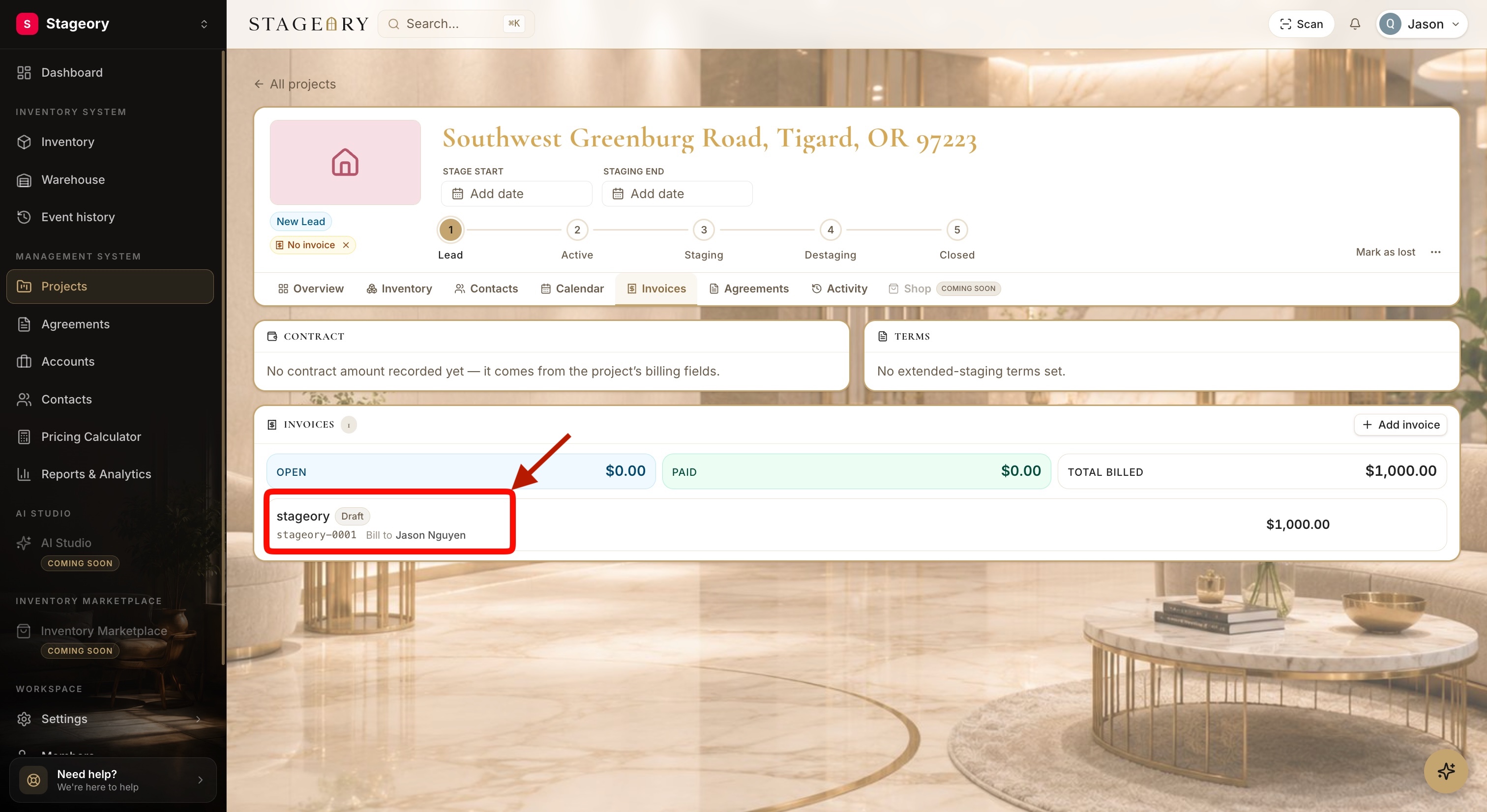
- 8
Edit an existing invoice
Update details anytime.
- Click an invoice to open it, then update the title, amount, status, dates, notes, or billing contact.
- Click Save Changes to apply.
app.stageory.com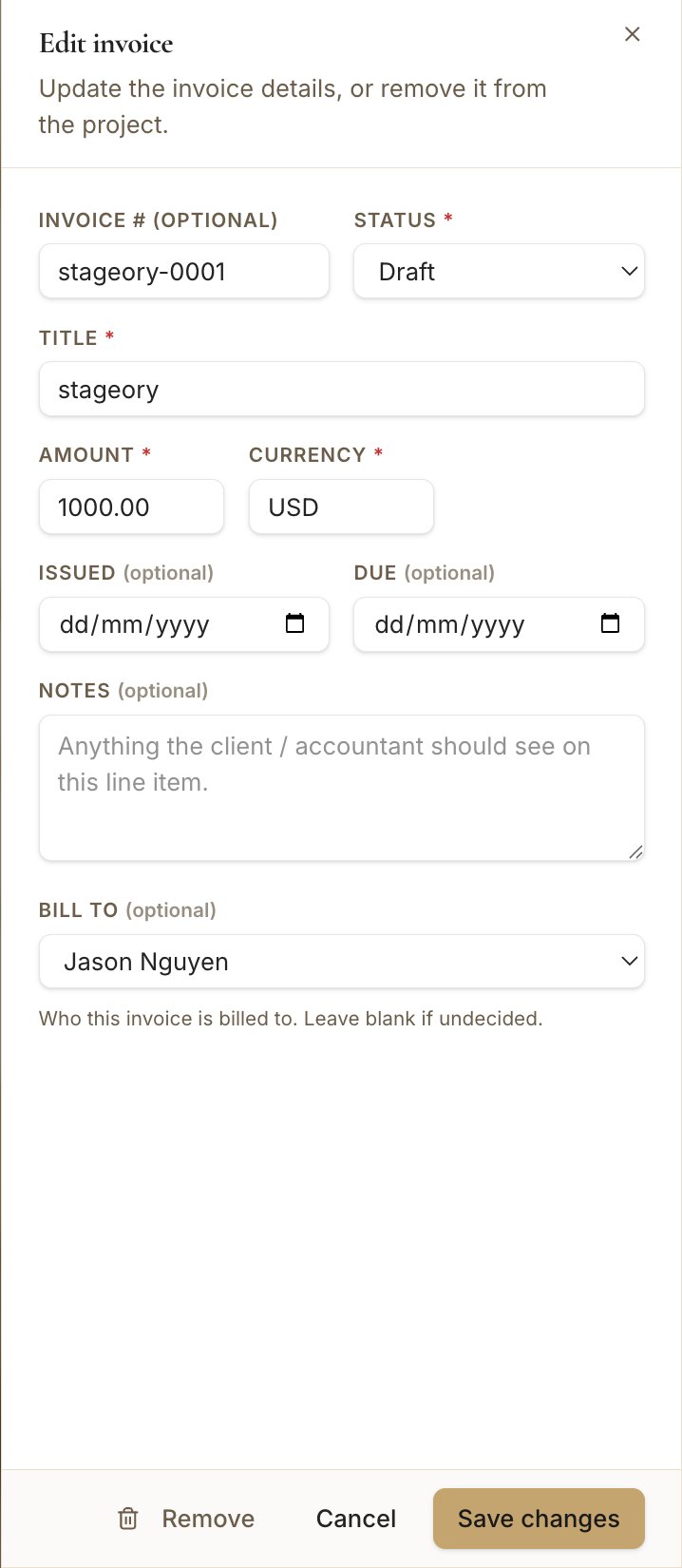
Tips
- Draft — the invoice is created but not yet sent to the client.
- Open — the invoice has been issued and is awaiting payment.
- Paid — the invoice has been paid in full.
- Cancelled / Removed — the invoice is no longer active and won't be collected.
Still need help?
Can't find what you're looking for? Our team is here.