Follow-up automation
Control which project, agreement, and member events trigger notifications — so the team stays informed without manual follow-up.
Open in Stageory- 1
Open Notification Settings
Workspace-level preferences.
- Go to Workspace → Settings → Notifications.
- This page holds every workspace-level notification preference. Only workspace admins can change them.
app.stageory.com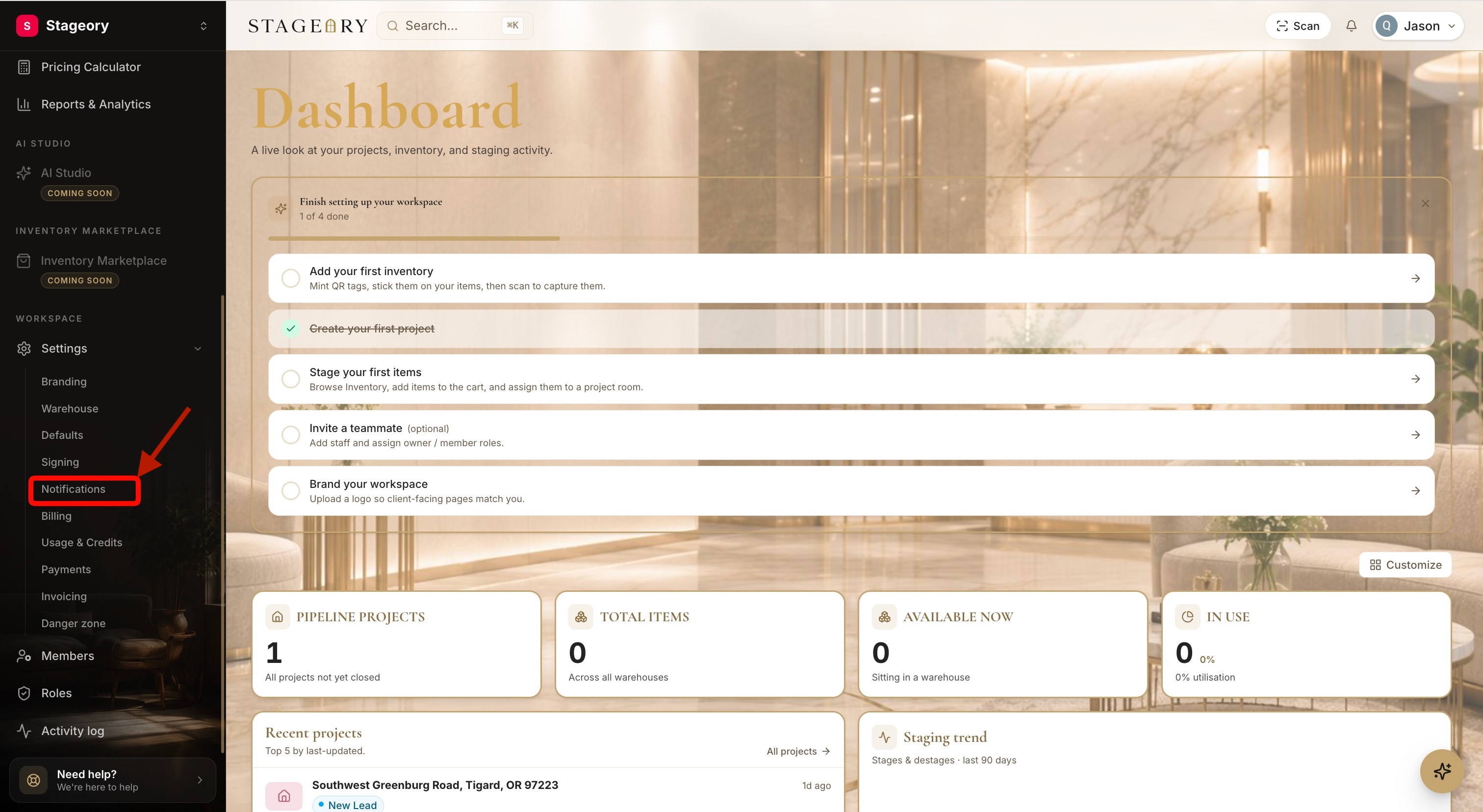
- 2
Configure follow-up notifications
Pick a channel per event.
- Review each event and choose how members are notified.
- In-App shows the alert inside Stageory, Push sends a browser or device notification, and Email sends it to the recipient.
app.stageory.com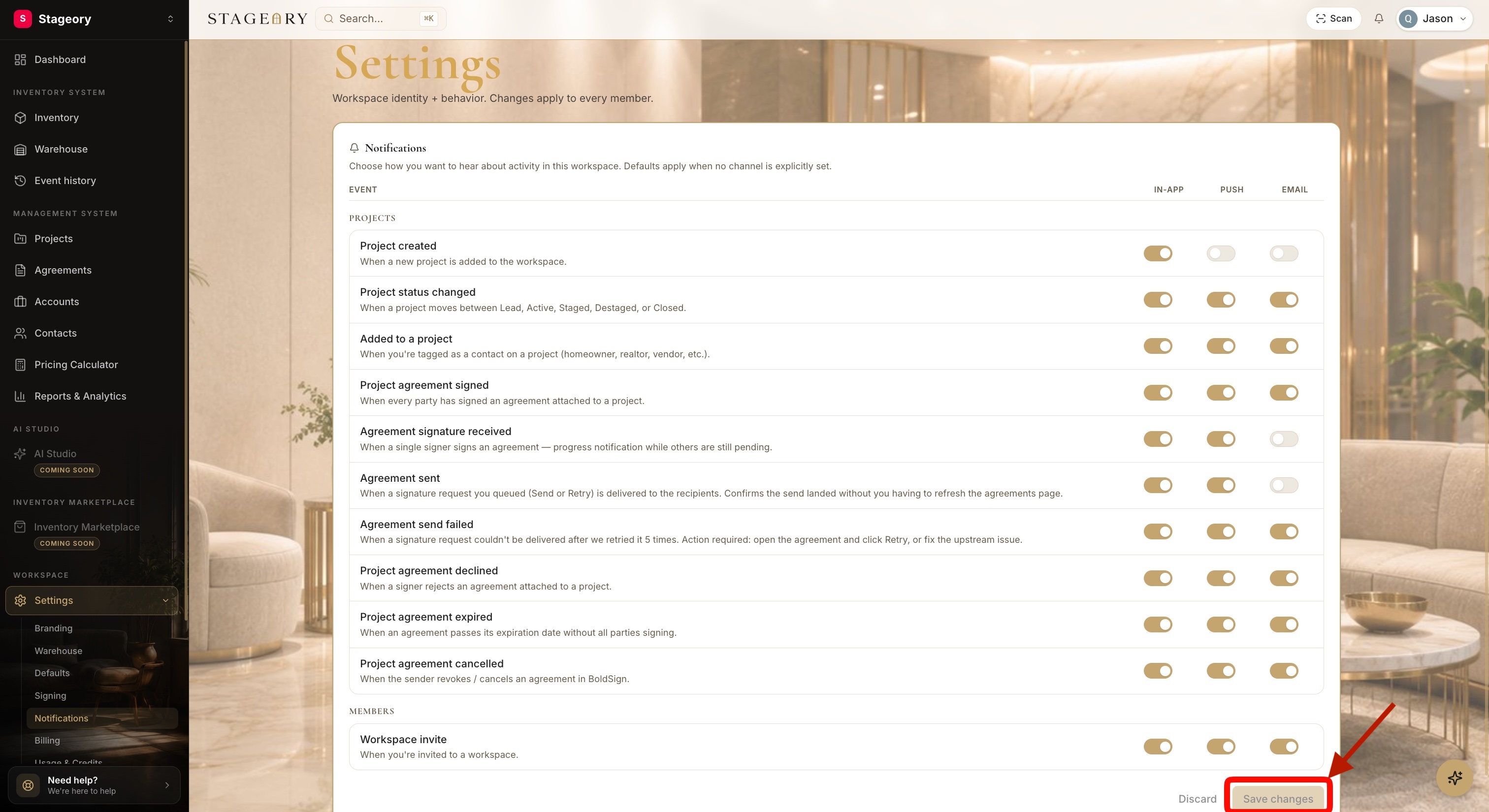
- 3
Save your changes
Apply across the workspace.
- Click Save Changes. Updates apply across the workspace and affect all future notifications.
app.stageory.com
Tips
- Project Created — a new project is added to the workspace.
- Project Status Changed — a project moves between Lead, Active, Staged, Destaged, or Closed.
- Added to a Project — you're added as a project contact (homeowner, realtor, vendor, or team member).
- Project Agreement Signed — all required parties have completed signing.
- Agreement Signature Received — an individual signer completes their signature.
- Agreement Sent — a signing request is successfully delivered.
- Agreement Send Failed — delivery failed after multiple retries; check the recipient and resend.
- Project Agreement Declined — a signer rejects the agreement.
- Project Agreement Expired — the agreement expires before all signatures are collected.
- Project Agreement Cancelled — an agreement is revoked or cancelled.
- Workspace Invite — a workspace invitation is sent or received.
Still need help?
Can't find what you're looking for? Our team is here.