
Add a product
Add a piece to your catalog in about a minute — named, photographed, and ready to stage.
Open in Stageory- 1
Open Inventory
Every piece you own, in one place.
- In the sidebar under Inventory System, click Inventory.
app.stageory.com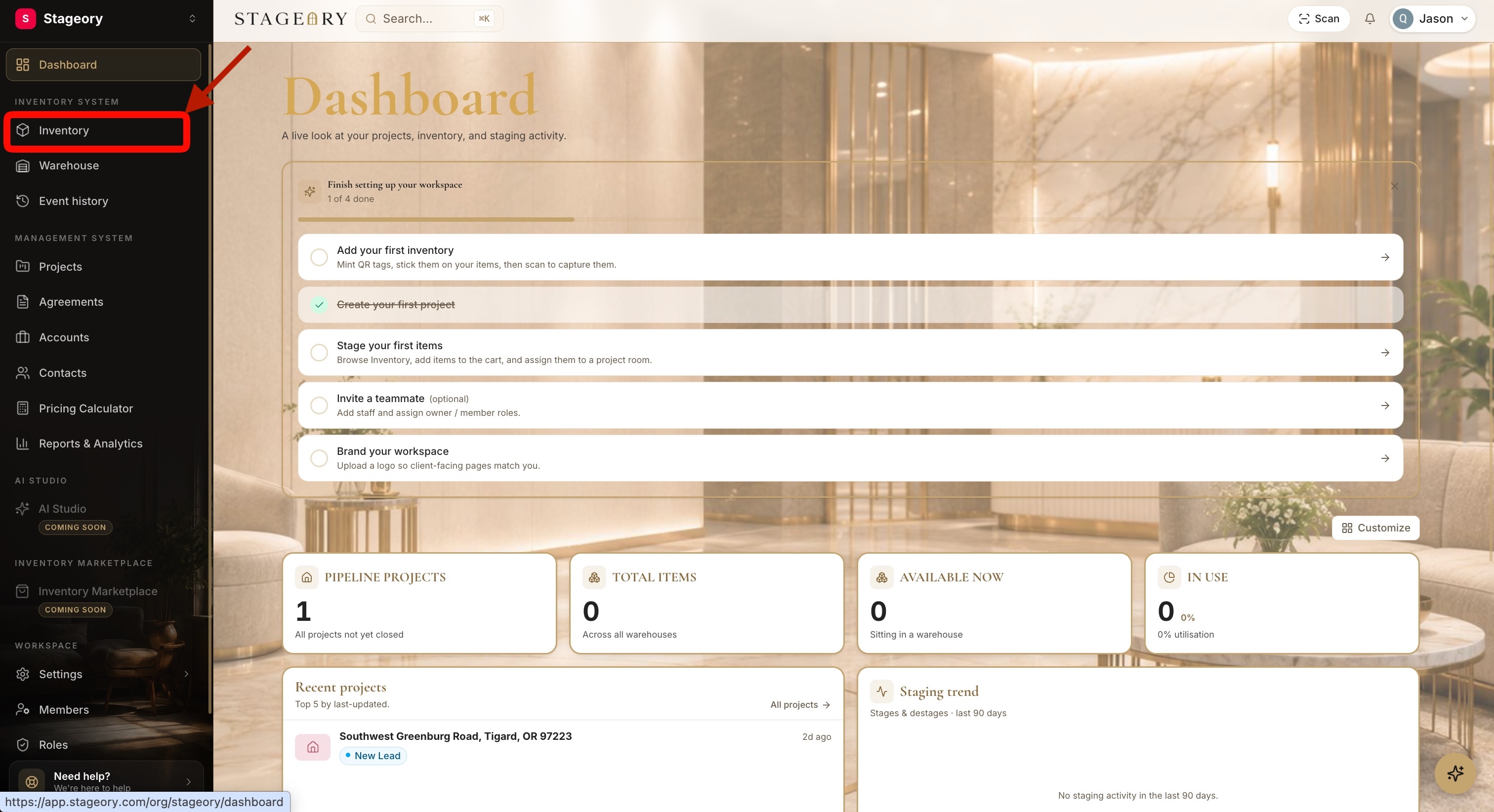
- 2
Add a product
Open the create form.
- Click Add product at the top-right.
app.stageory.com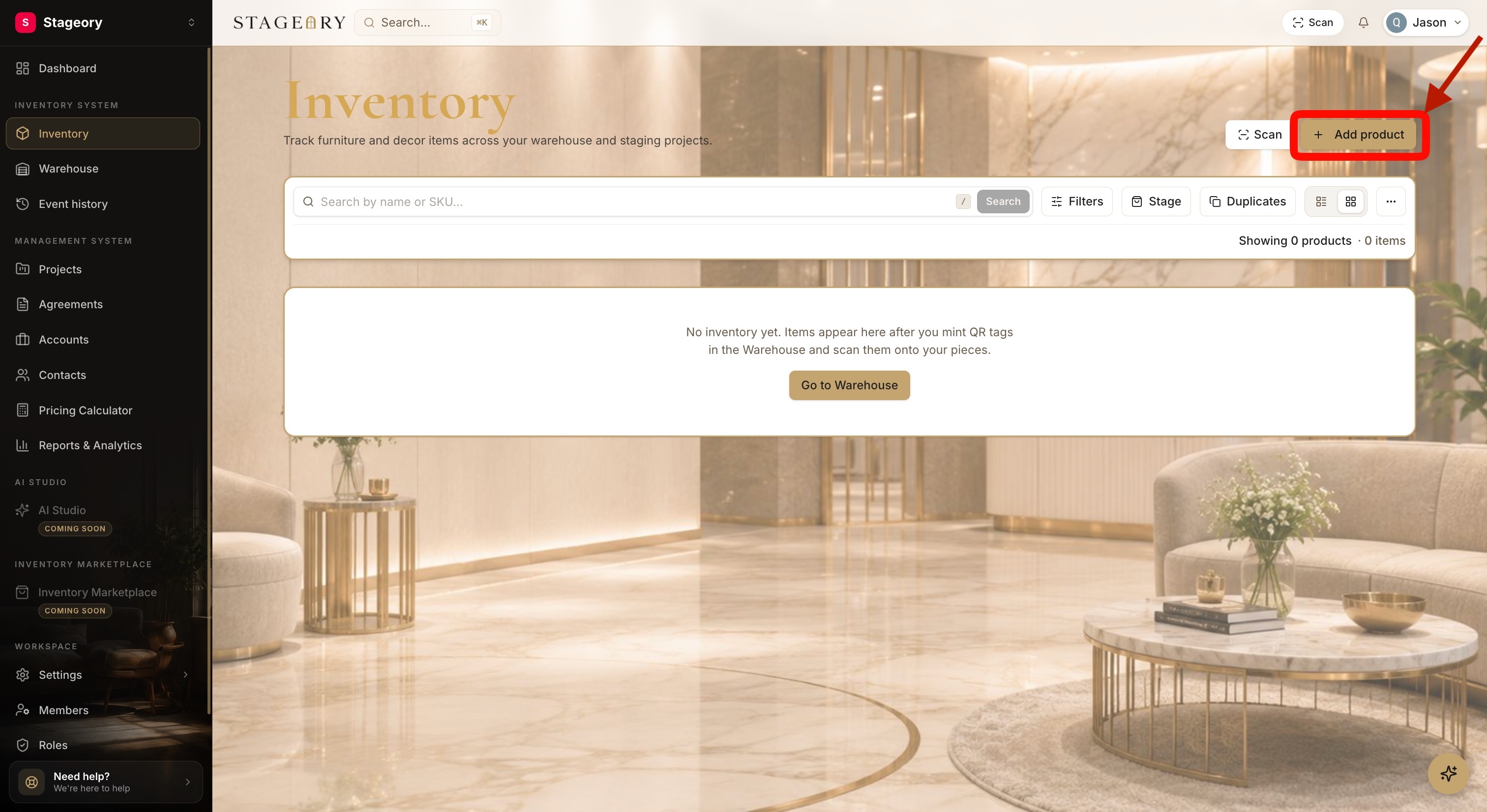
- 3
Fill it in and create
Name it, add a photo, save.
- Enter a Display name (required) and add a photo. Fill in category, vendor, dimensions, and notes if you like — or leave them for later.
- Click Create product — or Create & add another to keep going.
app.stageory.com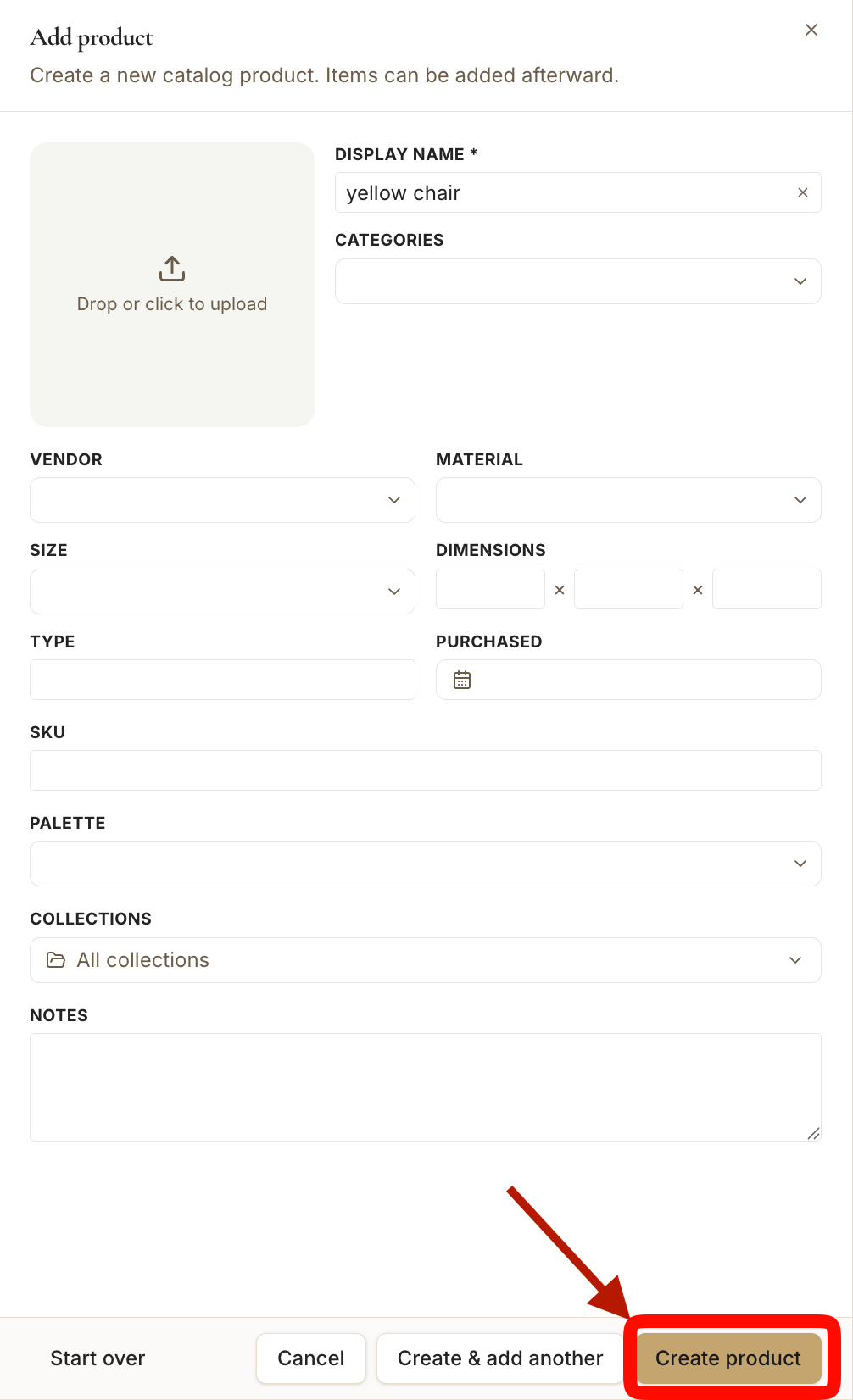
Tips
- Only the Display name is required — everything else can be filled in later from the item.
- To make pieces scannable, mint QR tags in Warehouse → New tags and stick them on. That's it — your catalog is started.
Still need help?
Can't find what you're looking for? Our team is here.