
Assign items to a project
Reserve pieces and drop them into a project's rooms — your team sees exactly what's staged where.
Open in Stageory- 1
Open Inventory
Your full catalog of pieces.
- In the sidebar under Inventory System, click Inventory.
app.stageory.com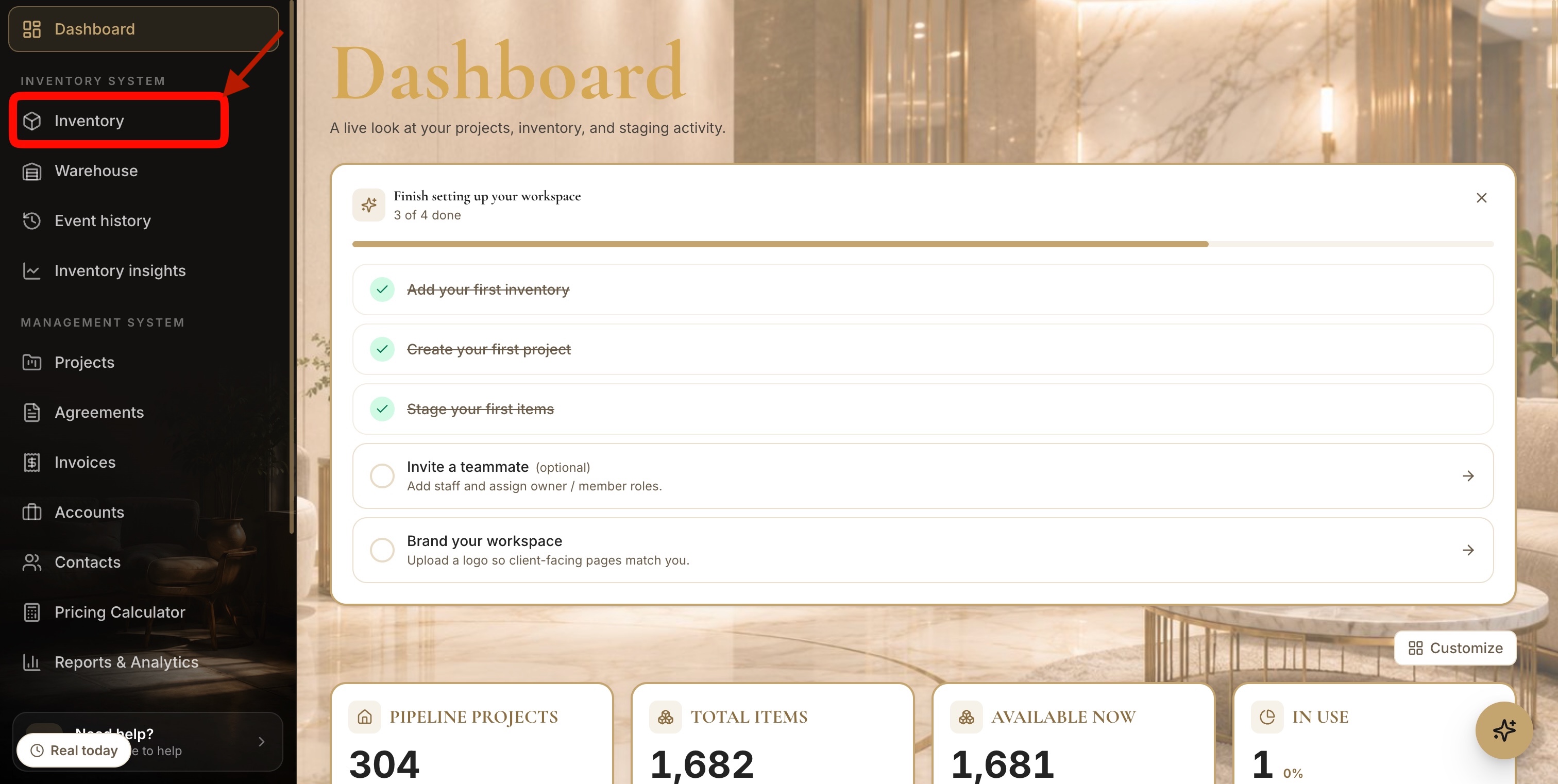
- 2
Find the piece you want
Search, filter, or browse.
- Use the Search bar or Filters to find a piece in the catalog.
app.stageory.com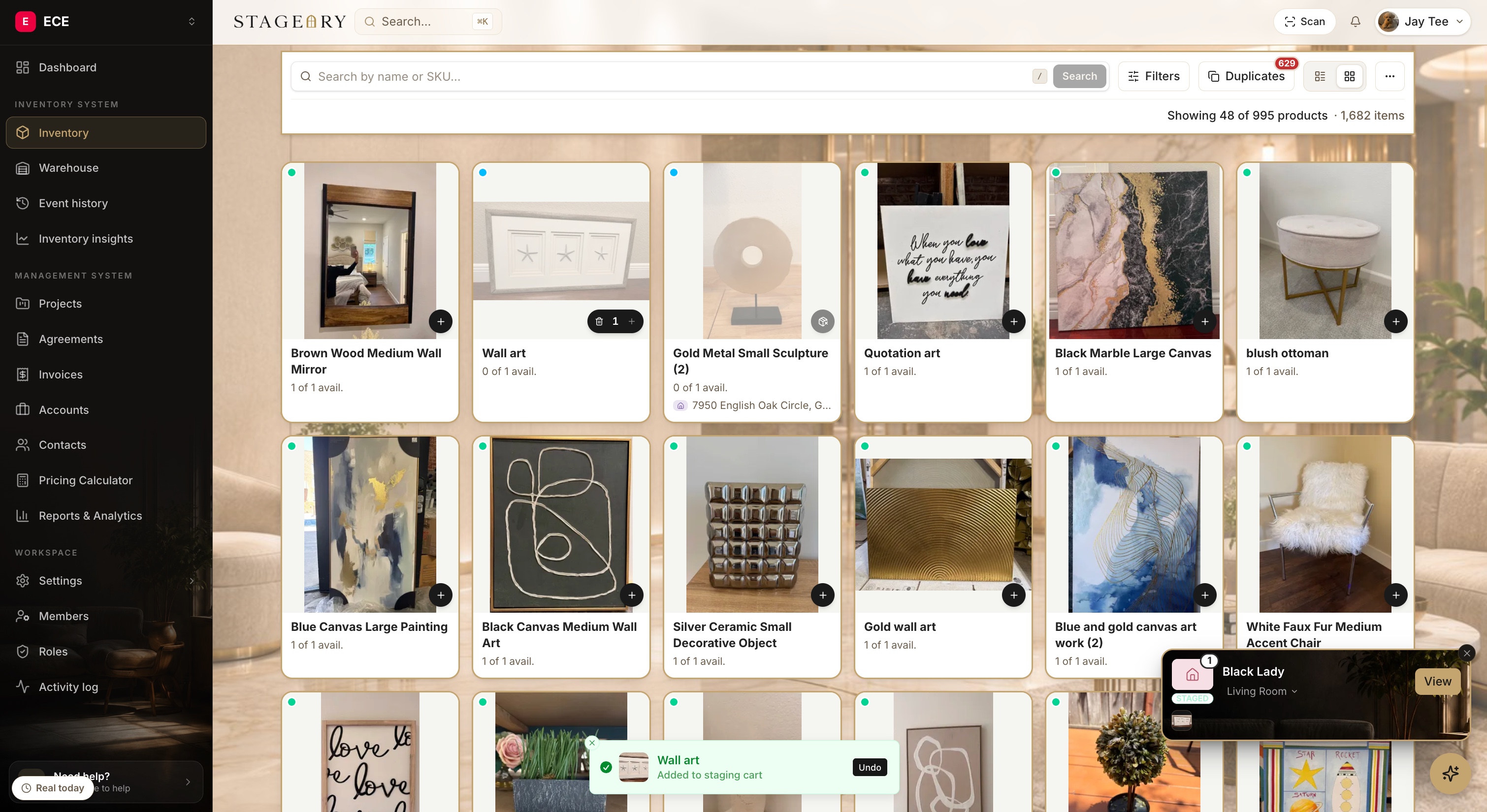
- 3
Open it and add to cart
From the item's panel.
- Click the piece to open it, then click Add to cart.
app.stageory.com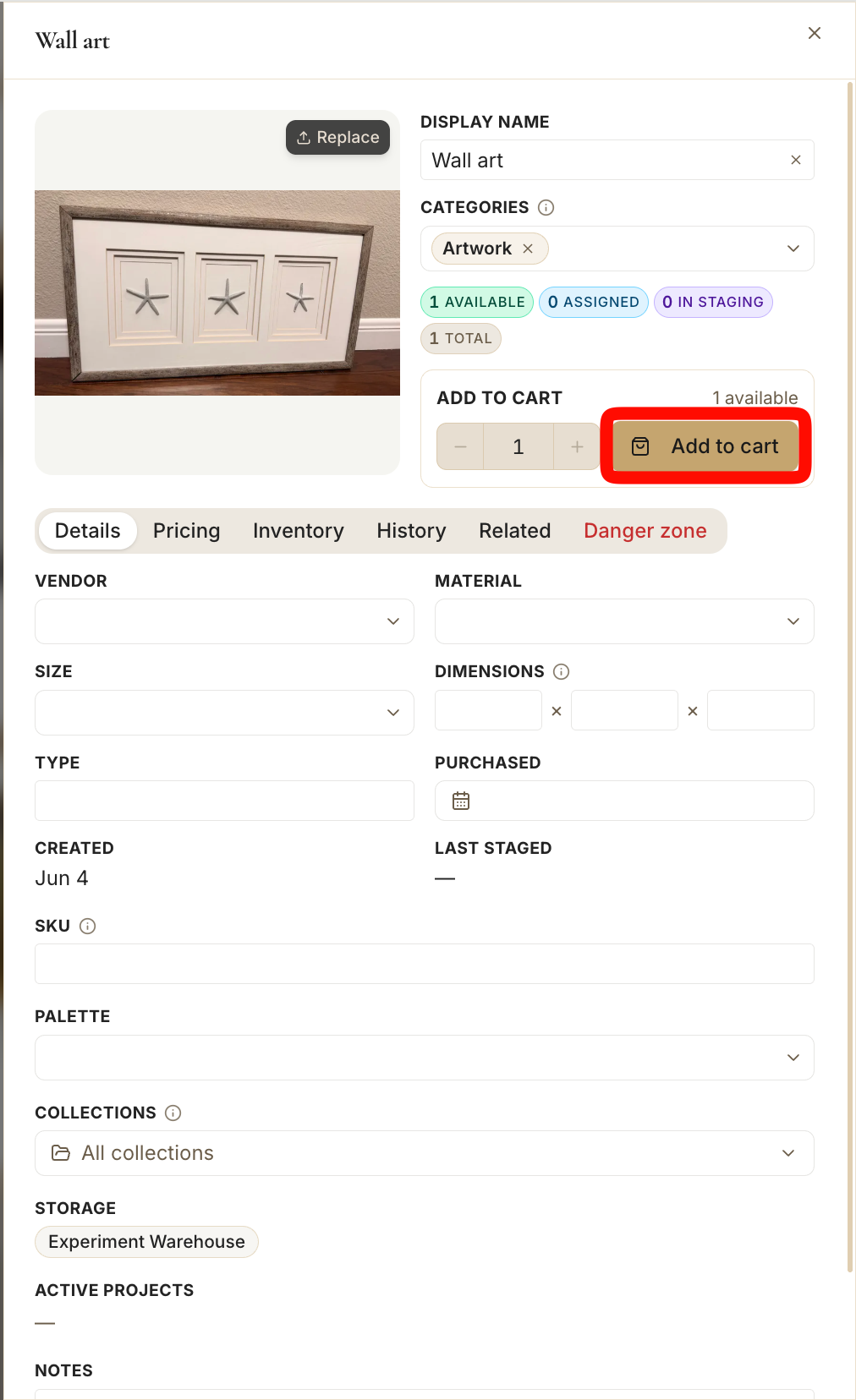
- 4
Choose a project
Where it's being staged.
- Pick the project you want to stage into.
app.stageory.com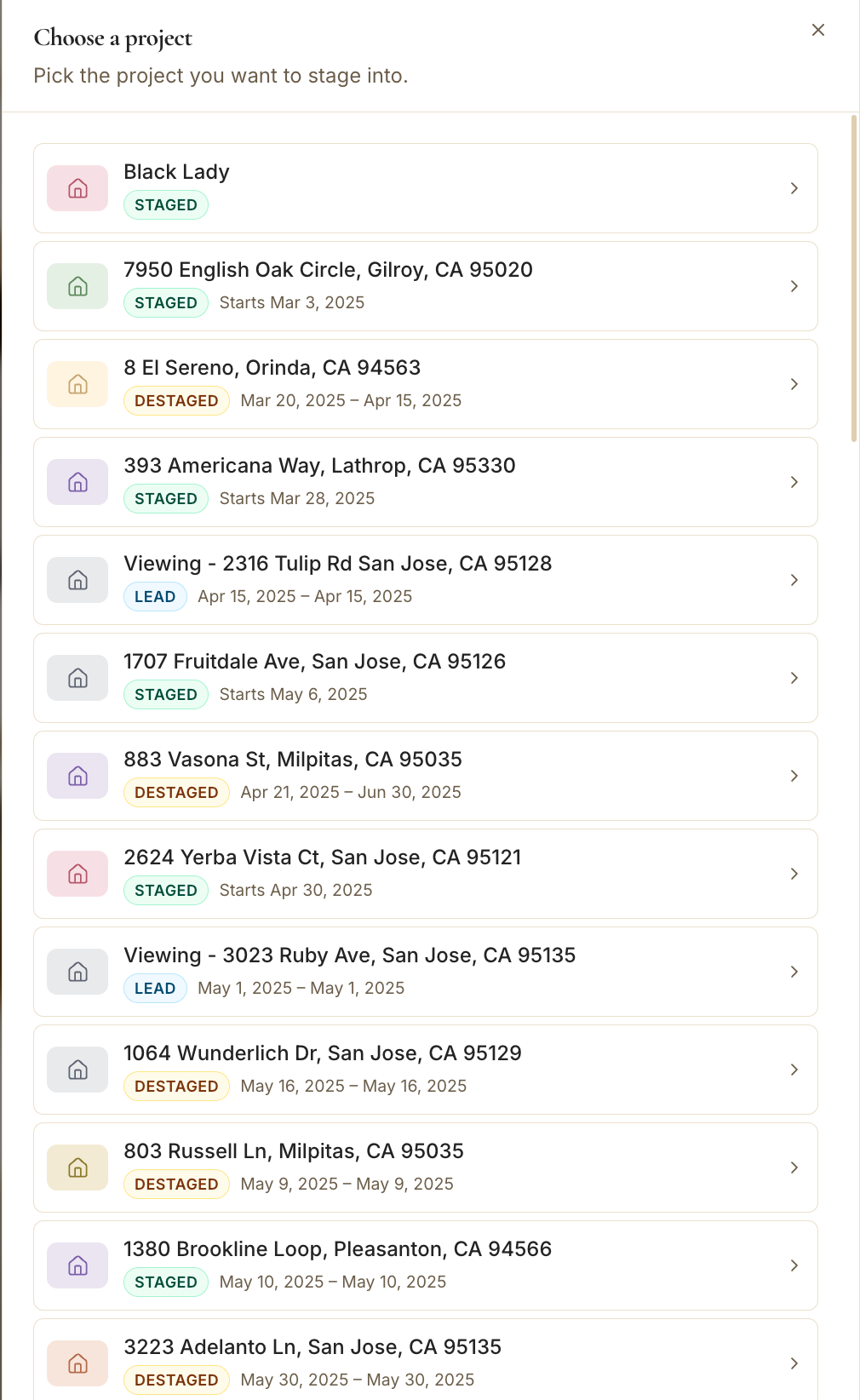
- 5
Pick or add a room
Allocate it to a room.
- Select a room — or click + New room to create one. You drop straight into staging once it's created.
app.stageory.com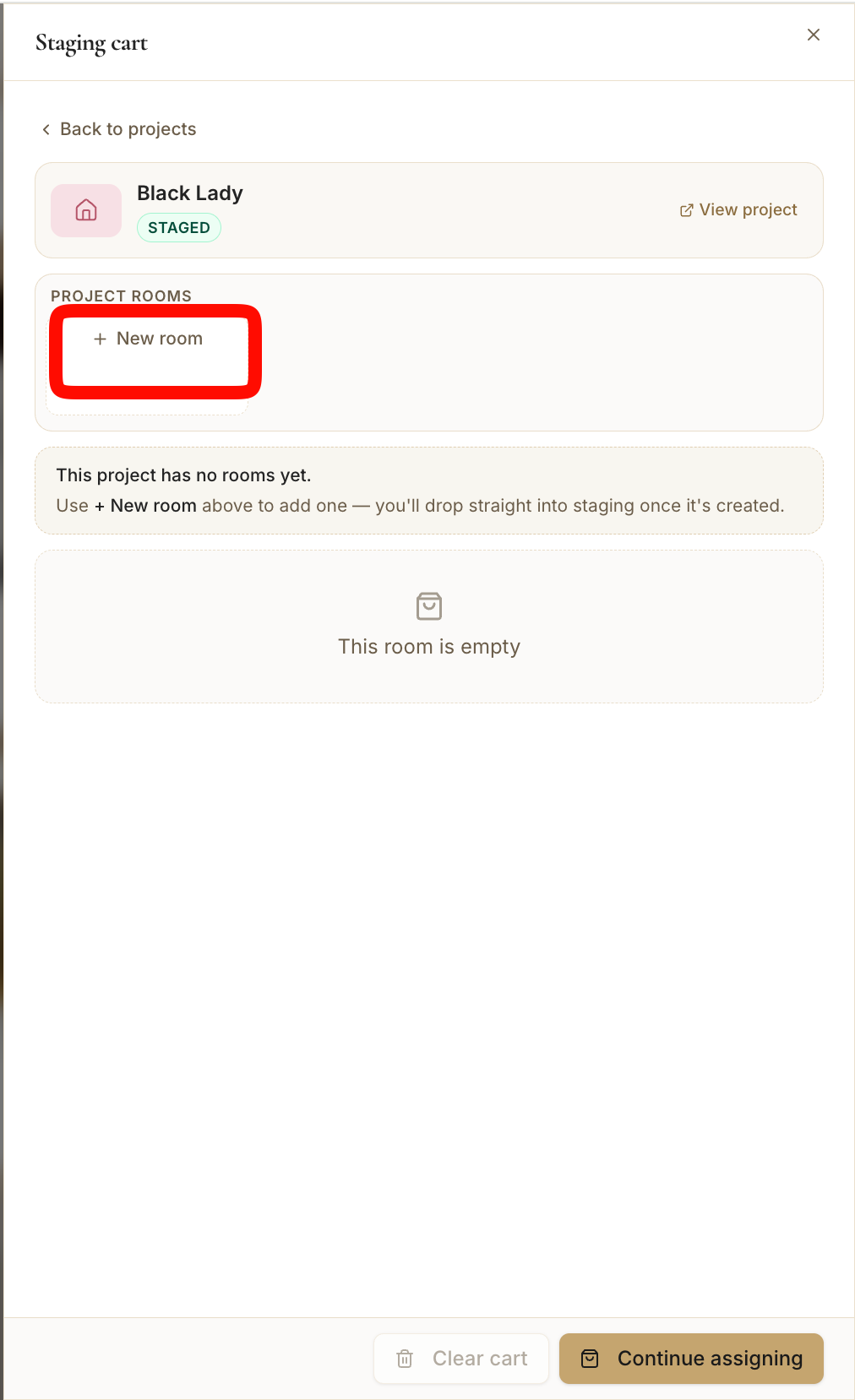
- 6
Continue assigning
It's staged.
- Click Continue assigning. The piece is now assigned to that room — adding saves instantly.
app.stageory.com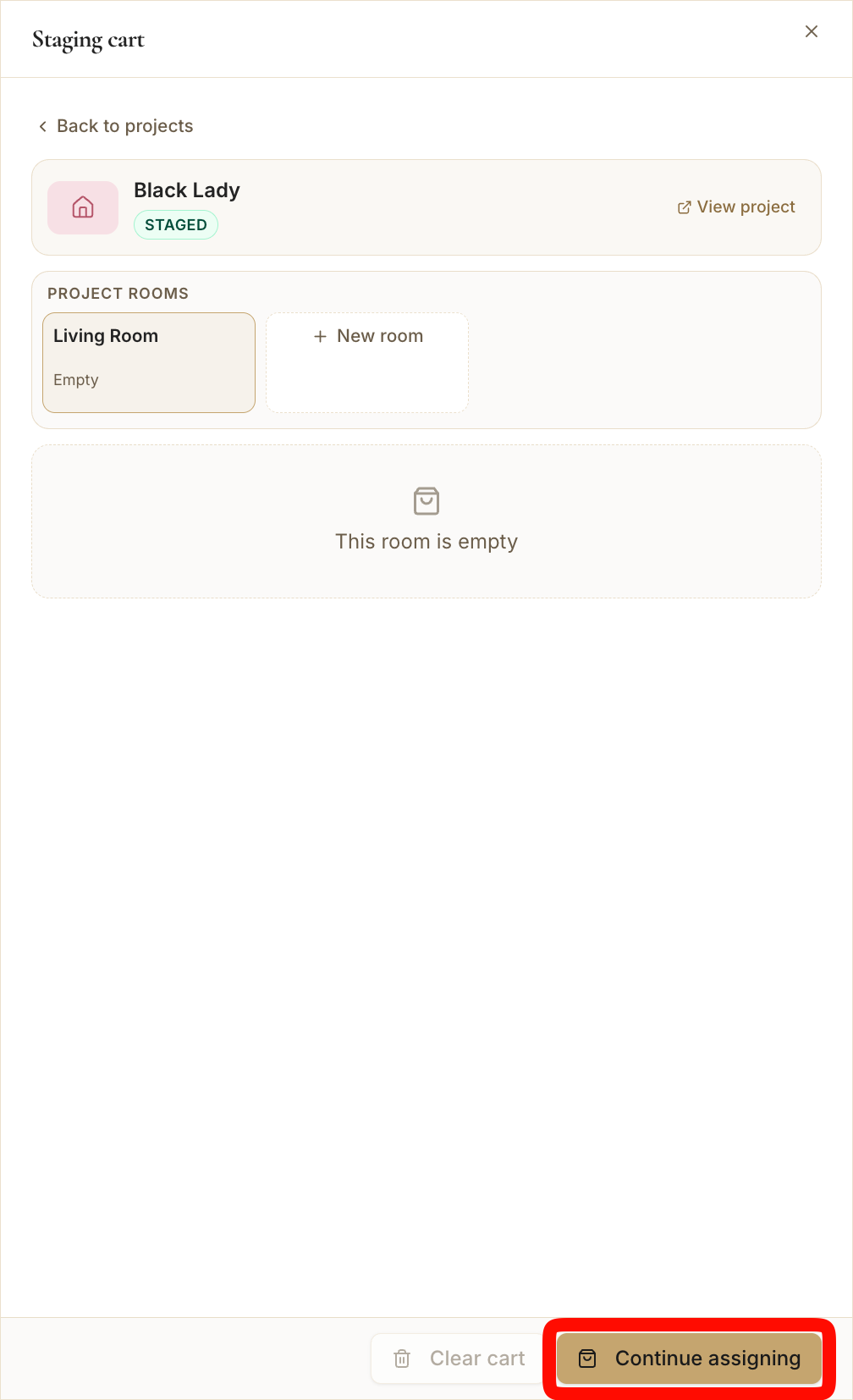
Tips
- Adding to the cart saves immediately — there's no separate submit. Continue assigning just lets you keep adding more pieces.
- Use Clear cart to unassign everything from the room (it goes back to the warehouse).
Still need help?
Can't find what you're looking for? Our team is here.